Terminal & EMV management
Purpose: Reset a card reader, re-provision a new one, and recover a reader that has stopped communicating.
When to use this: A reader has gone quiet, throws Failed on Com Port or a NAK error, or you're bringing a brand-new reader online.
Two resets: know which one
The dashboard at http://localhost:3036/api/dash has two buttons. They are not the same.
| Button | What it does | When to use it |
|---|---|---|
| EMV PAD RESET | A quick, safe reset of the reader. Doesn't change its configuration. | Try this first when a reader is sluggish or stops responding. Safe during service. It won't recover a reader that has thrown a NAK, that needs a power cycle (see below). |
| EMV PARAM DOWNLOAD | A full re-provision, pulls the merchant configuration onto the reader. | Only for a new reader, and only when the lane is idle. |
Don't press EMV PARAM DOWNLOAD on a reader that's already working. It's for readers that don't yet have their configuration. On a station that's already taking payments, it isn't needed.
Recover a reader that stopped responding
If a reader is unresponsive or slow but hasn't thrown a hard communication error yet, start with the soft reset:
- Open the dashboard at
http://localhost:3036/api/dash. - Press EMV PAD RESET and wait for it to confirm.
- If it's still not communicating, restart the payment service: open the Services console (
services.msc), right-click the VitaPay entry, and choose Restart. - Watch the reader come back up and initialize.
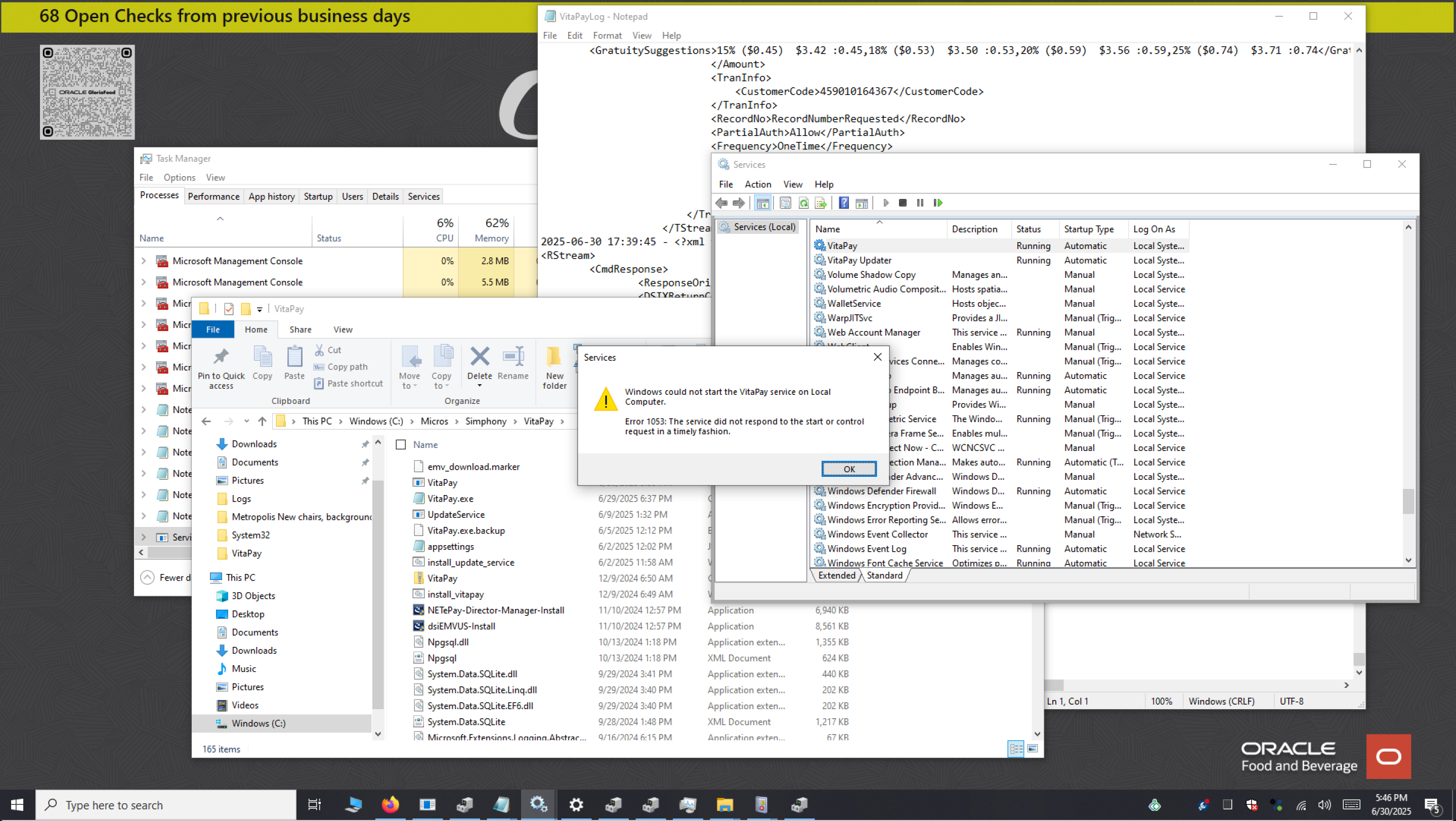 A reader that has stopped responding, start with EMV PAD RESET.
"Failed on Com Port" / NAK error
A NAK is usually the final error in a cascade: the reader has hit a series of errors and fully lost its connection to the PC. A soft reset won't bring it back at this point. The reader has to be physically power-cycled, and how you do that depends on how it's powered.
- One-cable readers (for example the Verifone P400): a single cable carries both power and data. Unplug it, wait a few seconds, and plug it back in.
- Externally powered readers (for example the Verifone M400): these draw power from a separate supply on top of the USB/data cable. Disconnect both the power and the USB/data cable, wait a few seconds, then reconnect both so the reader fully loses power and restarts. Reseating only the USB won't clear the NAK, because the reader never actually power-cycled.
Then:
- Wait for the reader to power back up and initialize.
- Restart the payment service (Services console, right-click VitaPay, Restart).
- Run a small test sale.
If it still NAKs after a full power cycle, the connection itself is suspect:
- Reseat the reader's USB cable into a known-good port.
- Open Device Manager and look under Universal Serial Bus controllers for any device showing an error; uninstall it and let Windows redetect on the next reconnect or restart.
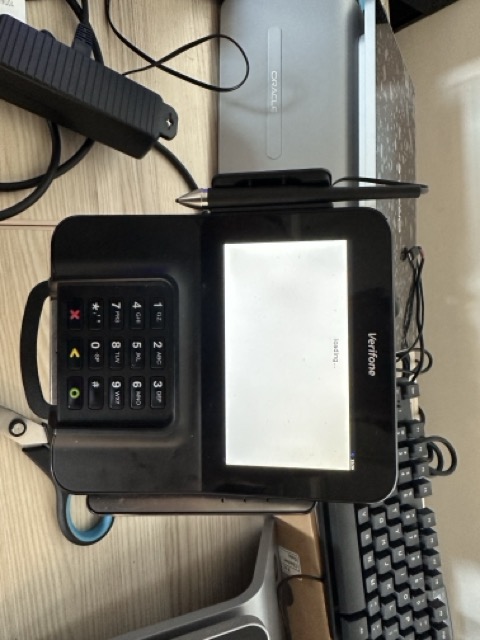 If a full power cycle doesn't clear the NAK, reseat the USB connection and check Device Manager.
Older notes mentioned deleting a "marker file" to refresh a reader. That method is retired. Use EMV PAD RESET (and EMV PARAM DOWNLOAD only for new readers) from the dashboard instead.
Verify
- The reader wakes and shows its idle/ready screen.
- A small test sale returns Approved; you can then Void it.
