Daily procedures: the config dashboard
Purpose: Use the local config dashboard to run the day-to-day jobs: reload a workstation's settings, push its offline transactions, reset a reader, and send logs to support.
When to use this: Any time you need to act on the workstation itself, after a settings change in the cloud, when offline transactions are waiting, or when support asks for logs.
Open the dashboard
On the workstation, open a browser and go to:
http://localhost:3036/api/dash
If you are remoted into the workstation, the same page works. The page is titled Config.
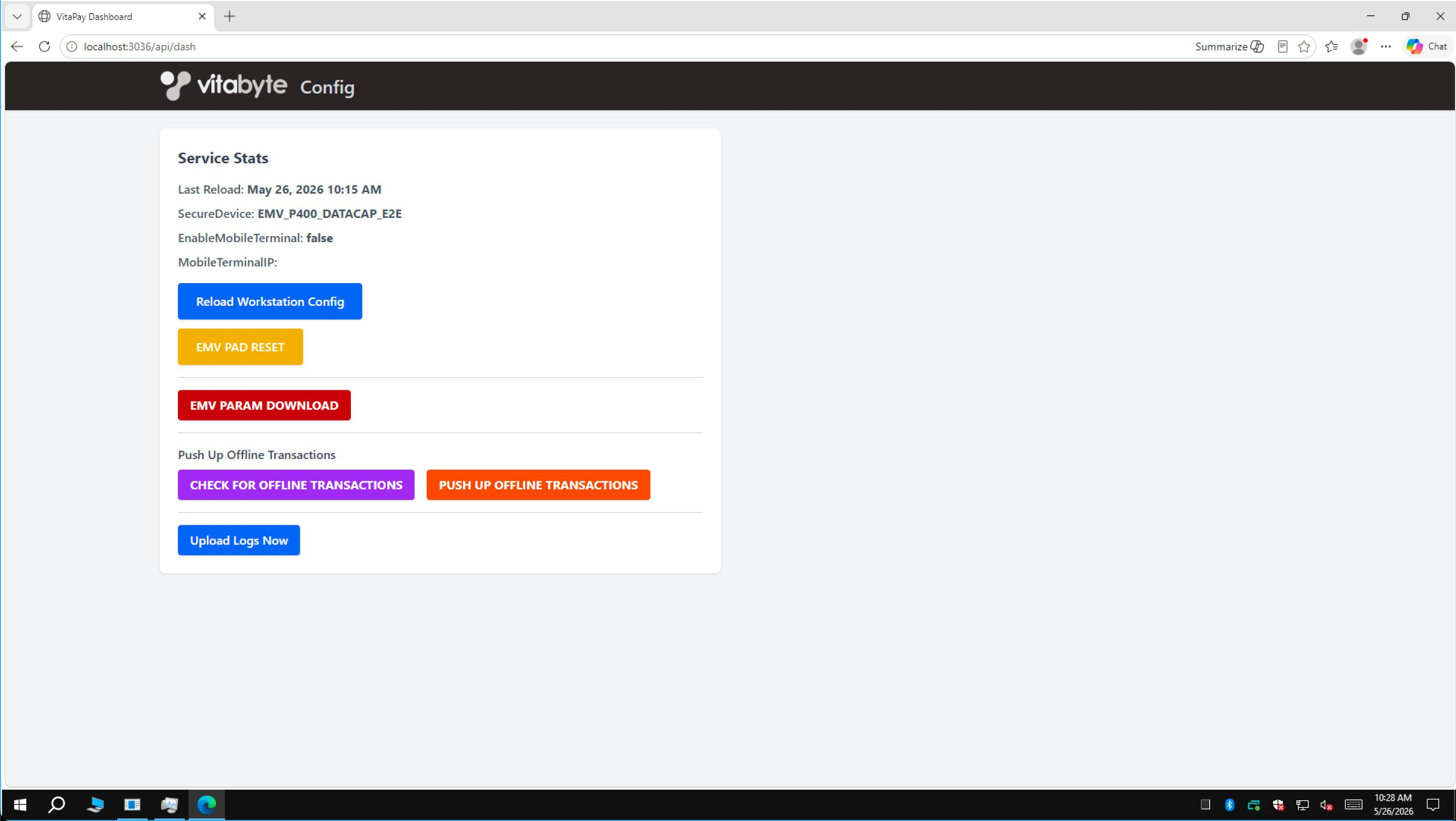 The config dashboard: Service Stats at the top, action buttons below.
Read the Service Stats
The top card, Service Stats, tells you the state of the workstation at a glance:
- Last Reload: when the workstation last pulled its config (or Never).
- SecureDevice: the reader profile in use, for example
EMV_P400_DATACAP_E2E. - EnableMobileTerminal: whether this workstation is pointed at a handheld.
- MobileTerminalIP: the handheld's address, if mobile terminal is on.
The actions
Reload Workstation Config
Press Reload Workstation Config to pull the latest settings from the cloud and apply them. The button shows Reloading…, then Reload Successful. Do this after anyone changes the workstation's config in the cloud portal, tip presets, secure device, mobile terminal, and the rest only take effect after a reload.
EMV PAD RESET
Press EMV PAD RESET for a quick, safe reset of the reader. It's the first thing to try when a reader stops responding. Full detail is in Terminal & EMV management.
EMV PARAM DOWNLOAD
EMV PARAM DOWNLOAD does a full re-provision of a reader, it pulls the merchant configuration onto it.
Use this only on a new reader, and only when the lane is idle. If the workstation is already taking payments, the reader already has its configuration, so you don't need it. Don't press it on a station mid-service.
Push up offline transactions
When the network drops, sales are stored on the workstation and forwarded later. To send them on demand:
- Press CHECK FOR OFFLINE TRANSACTIONS. The dashboard shows what's waiting, the MID, how many Requests to forward, any stored sale and return amounts, and the oldest/newest timestamps.
- If anything is waiting, press PUSH UP OFFLINE TRANSACTIONS to send them to the processor.
This is the workstation equivalent of the handheld's offline push.
Upload Logs Now
Press Upload Logs Now to send the workstation's logs to support. Use it when you're troubleshooting an issue or support asks for logs. The button confirms with Upload Successful.
Verify
- After Reload Workstation Config, the Last Reload time updates to the current time.
- After CHECK FOR OFFLINE TRANSACTIONS, Requests to forward reads
0once everything has been pushed.
