Pushing offline transactions (SAF)
Purpose: Manually upload the offline transactions a handheld stored while it couldn't reach the server, and send them up.
When to use this: When a device has been taking payments offline (a "store-and-forward" or SAF queue has built up), or you see the yellow pending banner and need to clear it. Follow the steps in order.
Steps
Step 1: Open the app menu
From the main point-of-sale screen, tap the round home/menu button at the bottom center of the device to open the app selection menu.
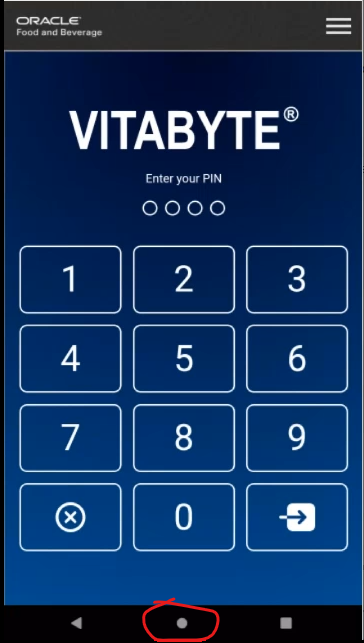 Tap the circular home button at the bottom center to open the app menu.
Step 2: Open Vitabyte
Find and tap the Vitabyte app tile to open the main sync and settings interface.
 Open the Vitabyte app tile.
Step 3: Enter Device Settings
Open the hidden settings with the gesture: swipe right to the middle of the screen → swipe left back to the middle → immediately tap the center Vitabyte logo. Do it quickly. (Full detail: the unlock gesture.)
 Swipe right, swipe left, tap the logo, fast.
Step 4: Check what's waiting
Inside Device Settings, scroll all the way to the bottom. Tap the blue SAF Stats button. A pop-up shows how many offline sales, returns, or open totals are pending.
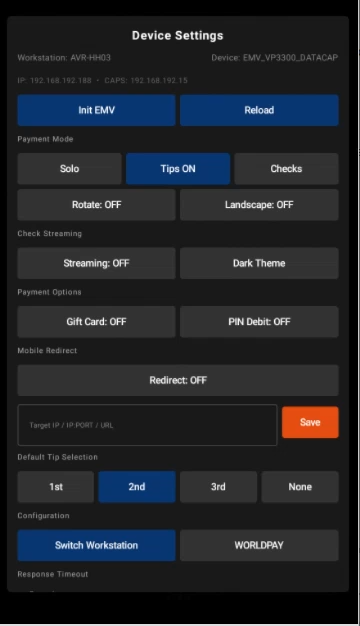 Tap SAF Stats to see the pending offline count.
Step 5: Push the transactions
Tap the green Upload SAF button. The device starts uploading all stored transaction records to the server.
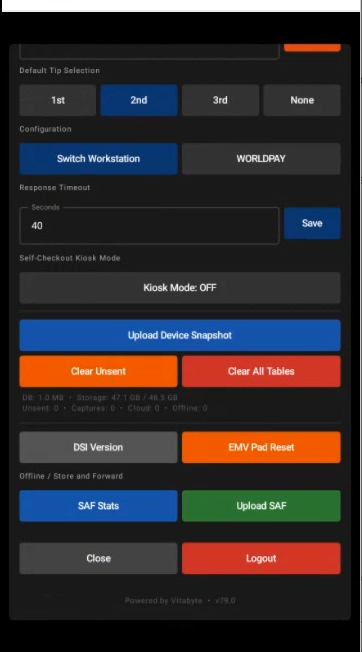 Tap Upload SAF to send the stored transactions up.
Step 6: Close and return to the POS
Once the upload finishes, tap the grey Close button to leave the settings panel. Then tap Back To POS to reload the main point-of-sale layout.
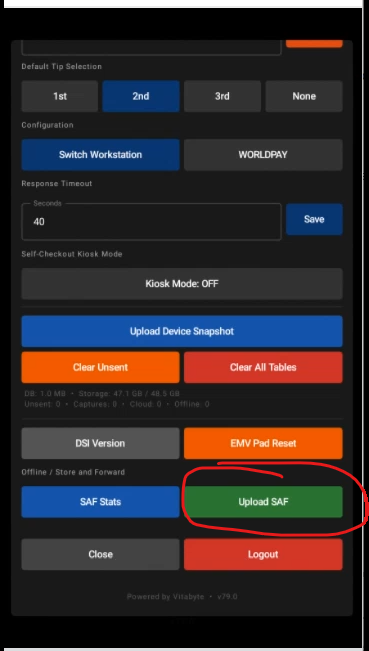 Tap Close, then Back To POS.
Verify
- After the upload, SAF Stats shows no pending transactions.
- The yellow pending banner (for example Offline: 2) clears once everything is sent.
- The transactions appear in the cloud portal.
